Bruxel modules
Import your catalog from CSV or Excel without renaming columns
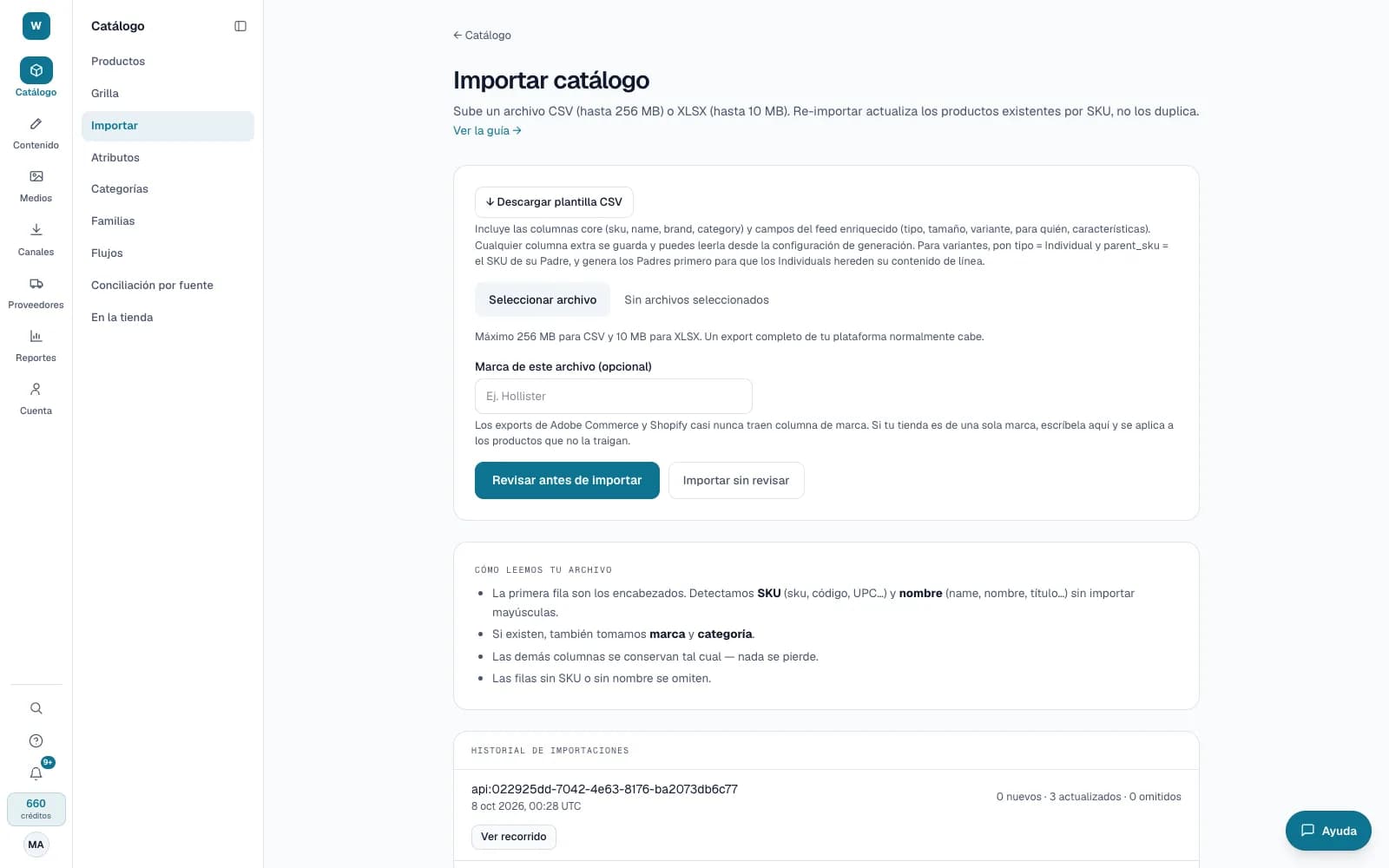
Upload your file as it is. Bruxel recognizes the key columns, shows you what it would do with each one and only writes when you confirm.
What it solves
Loading a catalog usually starts with renaming columns and cleaning values by hand. Here the SKU is the key: re-importing the same file duplicates nothing, and the columns you already have become attributes at no cost.
- CSV up to 256 MB or Excel up to 10 MB, with up to 50,000 rows; it recognizes SKU, name, brand and category under several column names.
- A preview lists every column: whether it fills an attribute you already have, creates a new one, or why it won't work as a filter.
- Related, cross-sell, up-sell and kit columns become links between products, and saved views take you back to your filters in one click.
What it looks like
Who it is for
- Teams that get the catalog from an ERP or a spreadsheet and update it often.
- Stores that already export columns such as parent_sku, related_skus or associated_skus.
- Anyone who reviews the catalog with the same filters every week and wants to save them.
What it needs
- A file with the SKU and the name of each product; brand and category are optional.
- Importing takes the Operator role or above.
- Filling attributes from your own file costs no credits. Suggesting related products with AI does, and it tells you how many before it starts.
Its guides
Import your catalogHow to upload your products, which columns Bruxel recognizes, and what happens to what you already loaded.Related productsWhich other products each one is offered with: related, cross-sell and upsell.Saved viewsA named set of filters and columns, so you don't rebuild it every time you open the catalog.
Read more: Importing and linking products in Bruxel: from file to catalog